
Our Community is getting an upgrade! To get everything ready for the relaunch, we’ll be placing the site in read-only mode starting September 21st.
We really appreciate your understanding while we get things set up behind the scenes. Catch up on all the exciting details about the move here.
Need help or have questions? Drop us a line at [email protected]

Community Articles
 Hi, I'm CLEO! Something exciting is coming to the Community. Stay Tuned!
- Cloudera Community
- Support
- Community Articles
- Index Documents using HDPSearch in HDP 2.3
- Subscribe to RSS Feed
- Mark as New
- Mark as Read
- Bookmark
- Subscribe
- Printer Friendly Page
- Report Inappropriate Content
- Subscribe to RSS Feed
- Mark as New
- Mark as Read
- Bookmark
- Subscribe
- Printer Friendly Page
- Report Inappropriate Content



Created on 10-08-2015 07:10 PM - edited 08-17-2019 02:04 PM
Lab Overview
In this lab, we will learn to:
- Configure Solr to store indexes in HDFS
- Create a solr cluster of 2 solr instances running on port 8983 and 8984
- Index documents in HDFS using the Hadoop connectors
- Use Solr to search documents
Pre-Requisite
- The lab is designed for the HDP Sandbox. Download the HDP Sandbox here, import into VMWare Fusion and start the VM
LAB
Step 1 - Log into Sandbox
- After it boots up, find the IP address of the VM and add an entry into your machines hosts file e.g.
192.168.191.241 sandbox.hortonworks.com sandbox
- Connect to the VM via SSH (root/hadoop), correct the /etc/hosts entry
ssh [email protected]
- If running on an Ambari installed HDP 2.3 cluster (instead of sandbox), run the below to install HDPsearch
yum install -y lucidworks-hdpsearch
sudo -u hdfs hadoop fs -mkdir /user/solr
sudo -u hdfs hadoop fs -chown solr /user/solr
- If running on HDP 2.3 sandbox, run below
chown -R solr:solr /opt/lucidworks-hdpsearch
- Run remaining steps as solr
su solr
Step 2 - Configure Solr to store index files in HDFS
- For the lab, we will use schemaless configuration that ships with Solr
- Schemaless configuration is a set of SOLR features that allow one to index documents without pre-specifying the schema of indexed documents
- Sample schemaless configruation can be found in the directory /opt/lucidworks-hdpsearch/solr/server/solr/configsets/data_driven_schema_configs
- Let's create a copy of the sample schemaless configuration and modify it to store indexes in HDFS
cp -R /opt/lucidworks-hdpsearch/solr/server/solr/configsets/data_driven_schema_configs /opt/lucidworks-hdpsearch/solr/server/solr/configsets/data_driven_schema_configs_hdfs
- Open
/opt/lucidworks-hdpsearch/solr/server/solr/configsets/data_driven_schema_configs_hdfs/conf/solrconfig.xmlin your favorite editor and make the following changes:
1- Replace the section:
                <directoryFactory name="DirectoryFactory"
               >
                </directoryFactory>
with
            <directoryFactory name="DirectoryFactory" class="solr.HdfsDirectoryFactory">
                <str name="solr.hdfs.home">hdfs://sandbox.hortonworks.com/user/solr</str>
                <bool name="solr.hdfs.blockcache.enabled">true</bool>
                <int name="solr.hdfs.blockcache.slab.count">1</int>
                <bool name="solr.hdfs.blockcache.direct.memory.allocation">false</bool>
                <int name="solr.hdfs.blockcache.blocksperbank">16384</int>
                <bool name="solr.hdfs.blockcache.read.enabled">true</bool>
                <bool name="solr.hdfs.blockcache.write.enabled">false</bool>
                <bool name="solr.hdfs.nrtcachingdirectory.enable">true</bool>
                <int name="solr.hdfs.nrtcachingdirectory.maxmergesizemb">16</int>
                <int name="solr.hdfs.nrtcachingdirectory.maxcachedmb">192</int>
            </directoryFactory>
2- set locktype to
<lockType>hdfs</lockType>
3- Save and exit the file
Step 3 - Start 2 Solr instances in solrcloud mode
mkdir -p ~/solr-cores/core1
mkdir -p ~/solr-cores/core2
cp /opt/lucidworks-hdpsearch/solr/server/solr/solr.xml ~/solr-cores/core1
cp /opt/lucidworks-hdpsearch/solr/server/solr/solr.xml ~/solr-cores/core2
#you may need to set JAVA_HOME
#export JAVA_HOME=/usr/lib/jvm/java-1.7.0-openjdk.x86_64
/opt/lucidworks-hdpsearch/solr/bin/solr  start -cloud -p 8983 -z sandbox.hortonworks.com:2181 -s ~/solr-cores/core1
/opt/lucidworks-hdpsearch/solr/bin/solr  restart -cloud -p 8984 -z sandbox.hortonworks.com:2181 -s ~/solr-cores/core2
Step 4 - Create a Solr Collection named "labs" with 2 shards and a replication factor of 2
/opt/lucidworks-hdpsearch/solr/bin/solr create -c labs -d /opt/lucidworks-hdpsearch/solr/server/solr/configsets/data_driven_schema_configs_hdfs/conf -n labs -s 2 -rf 2
Step 5 - Validate that the labs collection got created
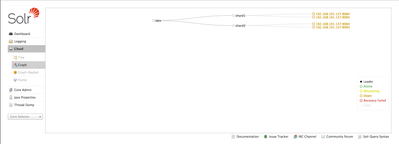
- Using the browser, visit http://sandbox.hortonworks.com:8983/solr/#/~cloud. You should see the labs collection with 2 shards, each with a replication factor of 2.
Step 6 - Load documents to HDFS
- Upload sample csv file to hdfs. We will index the file with Solr using the Solr Hadoop connectors
hadoop fs -mkdir -p csv
hadoop fs -put /opt/lucidworks-hdpsearch/solr/example/exampledocs/books.csv csv/
Step 7 - Index documents with Solr using Solr Hadoop Connector
hadoop jar /opt/lucidworks-hdpsearch/job/lucidworks-hadoop-job-2.0.3.jar com.lucidworks.hadoop.ingest.IngestJob -DcsvFieldMapping=0=id,1=cat,2=name,3=price,4=instock,5=author -DcsvFirstLineComment -DidField=id -DcsvDelimiter="," -Dlww.commit.on.close=true -cls com.lucidworks.hadoop.ingest.CSVIngestMapper -c labs -i csv/* -of com.lucidworks.hadoop.io.LWMapRedOutputFormat -zk localhost:2181
Step 8 - Search indexed documents
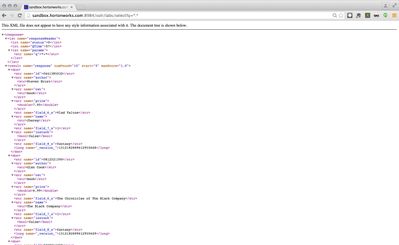
- Search the indexed documents. Using the browser, visit the urlhttp://sandbox.hortonworks.com:8984/solr/labs/select?q=*:*
- You will see search results like below
Step 9 - Lab Complete
- You have sucessfully completed the lab and learnt how to:
- Store Solr indexes in HDFS
- Create a Solr Cluster
- Index documents in HDFS using Solr Hadoop connectors

Created on 12-23-2015 03:20 PM
- Mark as Read
- Mark as New
- Bookmark
- Permalink
- Report Inappropriate Content
I would highly recommend chroot'ing the SolrCloud config, otherwise it dumps all entries at the root of a ZooKeeper tree. See https://community.hortonworks.com/content/kbentry/7081/best-practice-chroot-your-solr-cloud-in-zooke... for details.

Created on 12-29-2015 05:32 PM
- Mark as Read
- Mark as New
- Bookmark
- Permalink
- Report Inappropriate Content
@Ali Bajwa getting the following error when running step4, @Artem Ervits got the same error following these steps.
solr@sandbox root]$ /opt/lucidworks-hdpsearch/solr/bin/solr create -c labs -d /opt/lucidworks-hdpsearch/solr/server/solr/configsets/data_driven_schema_configs_hdfs/conf -n labs -s 2 -rf 2
Connecting to ZooKeeper at sandbox.hortonworks.com:2181
Re-using existing configuration directory labs
Created on 12-29-2015 05:32 PM
- Mark as Read
- Mark as New
- Bookmark
- Permalink
- Report Inappropriate Content
Creating new collection 'labs' using command:
{
"responseHeader":{
"status":0,
"QTime":1508},
"failure":{"":"org.apache.solr.client.solrj.impl.HttpSolrClient$RemoteSolrException:Error from server at http://192.168.197.146:8984/solr: Error CREATEing SolrCore 'labs_shard1_replica1': Unable to create core [labs_shard1_replica1] Caused by: [solrconfig.xml] directoryFactory: missing mandatory attribute 'class'"}}
Created on 12-29-2015 05:33 PM
- Mark as Read
- Mark as New
- Bookmark
- Permalink
- Report Inappropriate Content
<directoryFactory name="DirectoryFactory"/>
I tried replacing with
<directoryFactory name="DirectoryFactory" class="solr.HdfsDirectoryFactory">
But that did not help got the same error
Created on 12-29-2015 05:33 PM
- Mark as Read
- Mark as New
- Bookmark
- Permalink
- Report Inappropriate Content
Sorry had to break up the comment because of 600 character limit
Created on 12-29-2015 09:39 PM
- Mark as Read
- Mark as New
- Bookmark
- Permalink
- Report Inappropriate Content
@Andrew Grande: thanks for the info!
@azeltov looks like there was a missing class attribute in step 2 where solrconfig.xml is modified. I have added it in and tested that it works.
<directoryFactory name="DirectoryFactory" class="solr.HdfsDirectoryFactory">
Created on 12-29-2015 09:50 PM
- Mark as Read
- Mark as New
- Bookmark
- Permalink
- Report Inappropriate Content
Thanks @Ali Bajwa ! Per our conversation, clean out the directories, stop solr, and if you got into bad state create the solr collection using a new name , that will do the trick


Created on 12-30-2015 02:14 AM
- Mark as Read
- Mark as New
- Bookmark
- Permalink
- Report Inappropriate Content
thanks @azeltov and @Ali Bajwa the latest changes fixed the problem with this tutorial.


Created on 04-18-2016 12:22 AM
- Mark as Read
- Mark as New
- Bookmark
- Permalink
- Report Inappropriate Content
- labs_shard1_replica1: org.apache.solr.common.SolrException:org.apache.solr.common.SolrException: Index locked for write for core labs_shard1_replica1
- labs_shard2_replica1: org.apache.solr.common.SolrException:org.apache.solr.common.SolrException: Index locked for write for core labs_shard2_replica1

Created on 04-18-2016 07:41 AM
- Mark as Read
- Mark as New
- Bookmark
- Permalink
- Report Inappropriate Content
@Saad Siddique check out this article https://community.hortonworks.com/articles/15159/securing-solr-collections-with-ranger-kerberos.html there is a section that covers the "Index locked for write" error.
Basically you have to remove the write.lock file from the index folder and restart your solr instances


| User | Count |
|---|---|
| 4 | |
| 4 | |
| 2 | |
| 2 | |
| 1 |


