Our Community is getting an upgrade! To get everything ready for the relaunch, we’ll be placing the site in read-only mode starting September 21st.
We really appreciate your understanding while we get things set up behind the scenes. Catch up on all the exciting details about the move here.
Need help or have questions? Drop us a line at [email protected]

Community Articles

Find and share helpful community-sourced technical articles.
Announcements
Share your experience with Cloudera on G2 and get a $25 Amazon Gift card.
Hi, I'm CLEO! Something exciting is coming to the Community. Stay Tuned!

Labels (1)
avatar
Cloudera Employee

1.Prerequisites

  • Enable HDFS location access for the HIve table
    • Enable HDFS Policy in Ranger
    • Restrict POSIX access in HDFS File system
  • Grant Hive table access in Ranger


2. Enable HDFS location access for the user

Login to Ranger and select HDFS Policy

Make sure to mention the Hive table location (In below example “Resource Path” points to default Hive Warehouse location)

Validate the HDFS location access is restricted to ensure Ranger policy is working as expected

3. Create table policy in Hive Access if not exists

Select the Hive Policy

Add a new policy if not exists

Grant table access to required users and validate the access by querying the table

4. Enable table policy in Hive Row Level Filter

Select “Row level filter” under Hive policy

Select “Add New Policy”

Provide the required information in the Policy Details. Enter “Where” clause condition in “Row Level Filter”

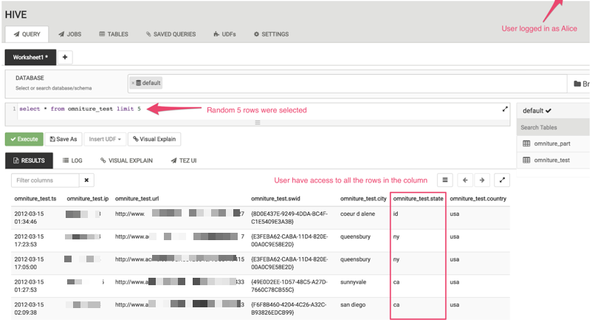
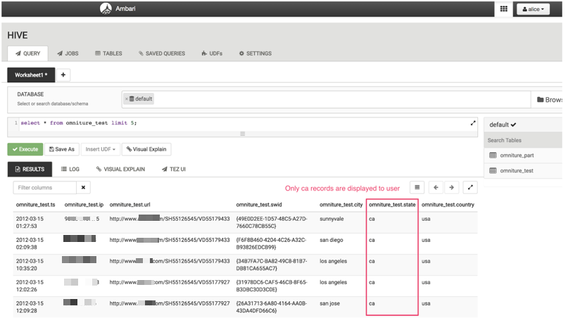
Below example grants access to “Alice” user only to rows that has a condition of “state = ca”

Before applying Row Level Filter

248726_0_new.png

Same query triggered after applying the filter and only “state = ca” records are displayed to user Alice

248726_1_new.png

2,522 Views
Comments
avatar

Can the same policy be applied on multiple tables in the same database